

Mocha VNC Setup Wizard for Mac OS X Tiger (10.4.x) or older
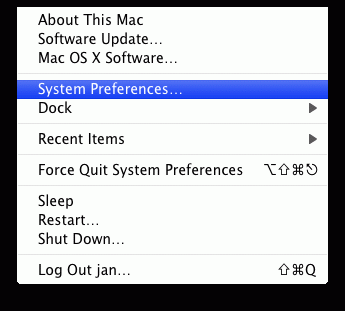
Mac OS X comes with its own built-in VNC server. To configure it, select System Preferences from the Apple menu bar (upper left at the screen)
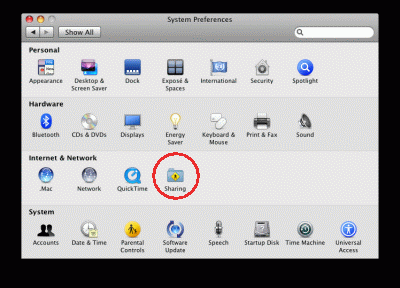
Selecting Internet & Network - Sharing
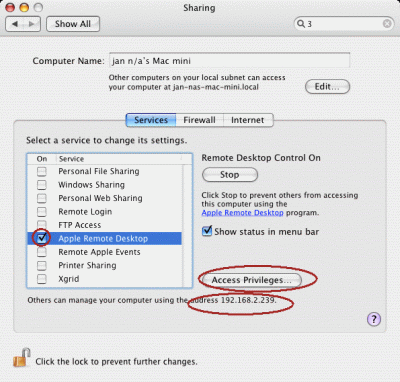
Enable Apple Remote Desktop.
The IP address for the Mac can also be seen in the window. The IP address is needed to configure Mocha VNC. The IP address shown in the Mac OS X Screen Sharing may be a name only known to the DNS for the Mac, not the iphone. In Mac:System Preferences - Network, the IP address for the Mac can also be located.
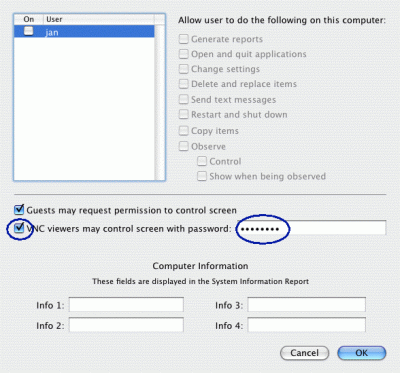
Type a secret password for the Server. Same password must be used in Mocha VNC.
Copyright (c) 1997-2024 MochaSoft Aps. All Rights Reserved. |